
Quick Summary
To backup digitised media, keep at least two independent copies, ideally following the 3-2-1 rule: three copies on two types of storage, with one stored off-site. Check that every file plays before you back it up, then test a restore. One copy of a digitised family video is a single point of failure.
- Check that every digitised file opens and plays before backing it up.
- Keep master files separate from working copies you edit or share.
- Follow 3-2-1: three copies, two storage types, one stored off-site.
- A sync folder that mirrors deletions is not a backup; use version history.
- Verify each backup by comparing file counts and opening a sample of videos.
Table of Contents
- Why Digitised Family Memories Need More Than One Copy
- Step 1: Check and Organise Your Newly Digitised Files
- Step 2: Apply the 3-2-1 Backup Strategy for Beginners
- External Hard Drive vs Cloud Storage for Videos
- How to Verify Your Backup Is Complete and Usable
- Digital Media Backup Checklist and Ongoing Maintenance
- Your Next Step: Lock In a Backup Plan This Week
- Frequently Asked Questions
Why Digitised Family Memories Need More Than One Copy
A single copy of a family video is a single point of failure.
Digital files are fragile in ways tapes are not. A hard drive can fail without warning, a phone can be lost, and a cloud account can be locked after a forgotten password. Digitising your media is the first step. A backup plan is what keeps it safe.
- A digital file has no physical wear, but it can still be lost or corrupted.
- Old tapes degrade, so once digitised, the tape is no longer your only copy.
- Family members may need access long after you have stopped managing the files.
Step 1: Check and Organise Your Newly Digitised Files
Before you back anything up, check that every file opens and plays properly. Watch or listen to a sample from each tape or reel. Note any file that stutters, has no sound or shows a black screen, and ask your digitising service to redo it while the original media is still available.
Once the files are checked, sort them into a simple structure. This makes backups faster and easier to verify later.
Choosing Sensible File Names and Folders
Good names tell you what a file is without opening it. Use a consistent pattern such as year, event, person, for example “1994-Christmas-Grandma-Kitchen.mp4.” Keep names short, avoid special characters, and use the same date format throughout.
Create folders by decade or by family branch. A clear structure is one of the most useful things you can give relatives later.
Keeping Masters Separate From Working Copies
A master file is the original, high-quality digitised file that you never edit. A working copy is a version you trim, share or compress for phones. Store masters in their own folder and make edits only on copies. This way you always have the untouched original to go back to.
Step 2: Apply the 3-2-1 Backup Strategy for Beginners
The 3-2-1 backup strategy is a simple rule that works for almost everyone. It says to keep:
- 3 copies of your important files
- 2 different types of storage media
- 1 copy stored off-site, in a separate location
The rule is easy to repeat but easy to misapply. A beginner often counts three folders on the same laptop as three copies, or counts two external drives bought in the same week from the same batch as two independent media types. Neither counts. The point of 3-2-1 is that no single event, a power surge, a house fire, a ransomware infection, a dropped drive, can take out every copy at once.
What Counts as a Real Copy
A copy is a complete, independently readable set of your files on a separate device or service. That means:
- It is not a shortcut or alias to the original folder.
- It is not a sync folder that mirrors deletions back to the source.
- It is not a second partition on the same physical drive.
A common mistake is to keep the master files on a desktop, a “backup” folder on the same desktop, and a cloud sync that mirrors both. That is one copy with two shadows, not three copies.
A Practical Beginner Setup
For a beginner, a workable 3-2-1 setup might look like this:
- Copy 1: the working folder on your computer’s internal drive, where you review and organise files.
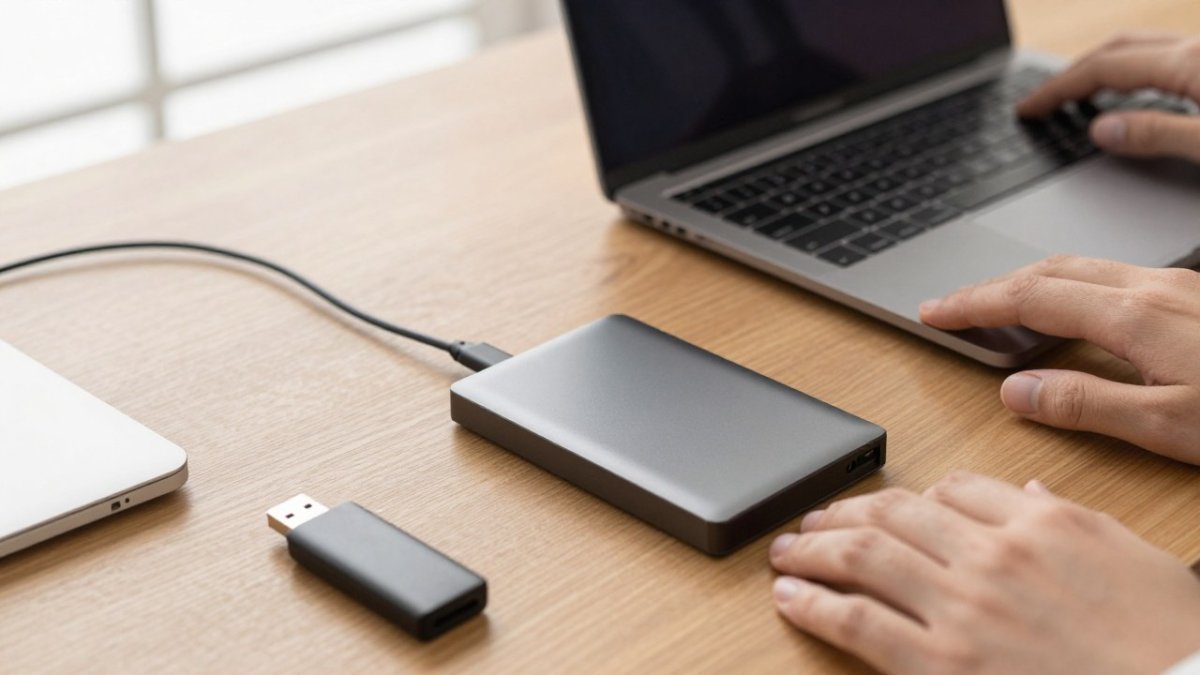
- Copy 2: an external desktop hard drive kept at home, used only for backups and disconnected when not in use.
- Copy 3: a cloud storage account, or a second external drive stored at a relative’s house in a different suburb or town.
Label each external drive with its contents and the date you last updated it. Keep drives somewhere dry and cool, away from windows, heaters and strong magnets.
Watch out: a cloud sync service that automatically deletes files when you delete them locally is a mirror, not a backup. Use a service or setting that keeps version history or a recycle bin, or copy to cloud storage manually rather than syncing.
Sizing the Setup Before You Buy
Before choosing drives, estimate your collection. A useful rough guide for digitised family media:
- Scanned photos are small individually but add up quickly across hundreds of images.
Add up the approximate size of your masters, then double it to allow for working copies and future additions. Buy an external drive with at least twice the space you currently need, so you are not shopping again within a year. For cloud, check the plan’s storage limit against that same doubled figure, and confirm what happens when you exceed it, some plans stop syncing rather than charging automatically.
Where 3-2-1 Stops Being Enough
The rule is a floor, not a ceiling. Two situations deserve more:
- Irreplaceable masters. If a digitised reel is the only surviving copy of the content, treat the master as a preservation file and keep an additional offline copy that is never connected to the internet.
- Shared family collections. If relatives will request copies, keep a shareable working set separate from the masters so that sharing never risks the originals.
Once the three copies exist and you have tested at least one restore, the setup is doing its job. The next section looks at the two most common storage choices in more detail.
External Hard Drive vs Cloud Storage for Videos
Both external hard drives and cloud storage can hold your digitised videos. Each has strengths, so most families use both. The useful question is not which one wins, but which jobs each does well.
What Each Option Is Good At
An external hard drive gives you full control, fast copying and no ongoing subscription. It is the better place for large master files and for the first full copy of a new digitisation batch.
Cloud storage is off-site by default, accessible from anywhere, and usually keeps version history so an accidental deletion can be undone. Its weaknesses are dependence on an internet connection, a subscription that must stay paid, and terms of service that can change.
A practical division of labour for a beginner:
- Use an external drive for the master files and the working set you edit from.
- Use cloud storage for the off-site copy and for sharing selected clips with relatives.
- Keep a second external drive, stored elsewhere, as the offline off-site copy if you would rather not rely on a subscription.
Lifespan, Failure and Migration
Hard drives do not last forever. A common pattern is for a drive to run for several years and then develop errors, often after being moved or left powered on continuously. Beginners should plan for replacement rather than waiting for failure:
- Check drive health every six months using the manufacturer’s diagnostic tool or your operating system’s disk utility.
- Replace a drive that shows reallocated sectors, read errors or unusual noises.
- Plan to migrate to a new drive every three to five years, even if the old one still works.
Migration means copying the full backup to a new drive, verifying it, and only then retiring the old one.
Cloud storage has a different lifespan problem: the account, not the disk, is what fails.
Watch out: a drive that has been sitting unplugged for years is not automatically safe. Mechanical drives can seize, and flash-based drives can lose charge over long periods.
Capacity and Cost in Practice
Video files are large, so check how much space your collection needs before buying. A collection of home videos can run to a large amount of storage, so check how much space your collection needs before buying.
Cloud plans vary in price and storage size. Compare what you will pay monthly or yearly against how much you need, and check current prices before you commit, as rates and plan tiers change.
Privacy and Account Security for Cloud Backups
Your family videos are personal, so protect the account that holds them. Use a strong, unique password and turn on two-factor authentication.
Where possible, encrypt sensitive folders before uploading them. Many backup tools offer this as a setting, and some cloud plans include encrypted folders by default.
The two main storage choices each suit different jobs, so most families use both.
| Option | Best for | Key difference |
|---|---|---|
| External hard drive | Master files and working set | Full control, no subscription, physical risk |
| Cloud storage | Off-site copy and sharing | Accessible anywhere, depends on subscription and connection |
| Second external drive | Offline off-site copy | No subscription, must be stored elsewhere |
| Hard drive replacement | Ageing or failing drives | Plan every three to five years |
How to Verify Your Backup Is Complete and Usable
A backup you have never tested is only a hope. After each backup, check that the copy is complete and that the files open.
- Compare the number of files and total size between the original folder and the backup.
- Open a sample of videos from the backup, including the oldest and the largest.
- Check that your file names and folder structure came across intact.
Repeat these checks every few months, and always after a major change such as a new computer or a new drive.
Digital Media Backup Checklist and Ongoing Maintenance
Use this checklist when you first set up your backups and again each time you add new media:
- Checked that all digitised files play properly
- Sorted files into clear folders with consistent names
- Kept masters separate from working copies
Ongoing maintenance matters as much as the first setup. Set a reminder every six months to check drive health, confirm your cloud account is still active, and copy new files into your backup routine. Replace drives that show errors or that have reached the end of their expected life.
Showbiz Video Productions converts VHS tapes, film reels, cassettes and vinyl. For current pricing, check the Showbiz Video Productions website or request a quote.
Your Next Step: Lock In a Backup Plan This Week
Start with the collection you care about most. Choose one external hard drive, set up one cloud account or off-site copy, and run the checklist above. Once the first copy is safe, the rest of your collection can follow at your own pace.
If you are still deciding what to digitise first, Showbiz Video Productions can help you get your media converted. Get A Quote today and take the first step toward protecting your family memories.
Frequently Asked Questions
How do beginners back up digitised media?
Start by copying your digitised files to a computer folder, then make a second copy on an external hard drive and a third off-site copy in cloud storage. Check that each copy opens correctly before you delete anything from the original source. Label drives with the date and contents so you can find them later. Repeat the process whenever you add new recordings, and keep a short written log of where each copy lives.
How many copies of digitised files should I keep?
The 3-2-1 backup strategy recommends three copies of your data, stored on two different types of media, with one copy kept off-site. For most home collections this means your original working files, one external hard drive, and one cloud account. Keeping at least three copies protects you if one drive fails or a cloud account is locked, and it gives you a reliable way to restore lost files.
Should I store digitised media on an external hard drive or in the cloud?
Use both. An external hard drive gives you fast, offline access and full control of your files, but it can fail or be damaged in a fire or flood. Cloud storage keeps a copy in a separate location, which protects against those risks, but uploads of large video files can be slow and subscription costs add up over time. Using each for different copies gives you the strongest protection for family videos and photos.
How often should I check or replace a media backup?
Open a sample of files from each backup every few months to confirm they still play, and run a full check at least once a year. Hard drives can fail without warning, so treat any drive older than about five years as due for replacement and copy its contents to a new one. Record the date of each check in your backup log so you can see at a glance when something was last verified.
