Last Updated: October 24, 2026
Quick Summary
To organize digital music library files effectively, create a folder structure with artist names and album titles, use consistent file naming conventions with track numbers, standardize metadata tags, and implement a 3-2-1 backup strategy with local and off-site copies.
- Use a main Music folder with subfolders organized by Artist Name and Album Title to mirror physical collections
- Name every file as [Track Number] – [Artist Name] – [Track Title].mp3 with two-digit track numbers for correct sorting
- Apply a metadata editor like MusicBrainz Picard to standardize artist, album, track number, year, and genre tags across all files
- Maintain 3 copies of your library using 2 different storage types with 1 copy stored off-site for protection
- Test your backup restoration once yearly by restoring five albums from each location to confirm files and tags are intact
Table of Contents
- Why a Structured Digital Music Library Matters
- Step 1: Assess Your Current Collection and Plan Your System
- Step 2: How to Organise Music Files Into Folders by Artist and Album
- Step 3: Apply Consistent File-Naming Conventions
- Step 4: Use a Music Metadata Editor to Standardise Tags
- Step 5: Choose Music Library Organisation Software for Management
- Step 6: Set Up Digital Music Library Backup and Long-Term Preservation
- Step 7: Maintain and Expand Your Organised Library
- Frequently Asked Questions
Why a Structured Digital Music Library Matters
Learning how to organize digital music library files well saves hours of searching. Scattered files with unclear names mean duplicate tracks, missing metadata, and playlists that break when you move files.
Disorganisation also fragments your collection across devices, and without a backup plan, one failure loses years of music.
At Showbiz Video Productions, we’ve digitised hundreds of family media collections, from vinyl records to home videos.
Step 1: Assess Your Current Collection and Plan Your System
Before organising, take stock: how many files do you have, are they mostly MP3s or a mix of formats, and are they complete albums or scattered singles?
Note existing patterns and where duplicates appear, which is common after importing from multiple sources over the years.
Decide on your goal: a library you’ll actively listen to on multiple devices, or one that must work with specific player software? If you’re converting vinyl records to digital files, accommodate high-quality audio formats alongside standard MP3s.
Write down your plan. A simple one-page outline keeps you focused:
- Total estimated files: [number]
- Primary file formats: [list]
- Main listening devices: [phone, computer, media player]
This planning prevents reorganising everything twice.
Step 2: How to Organise Music Files Into Folders by Artist and Album
The most reliable folder structure mirrors physical collections: artist folders containing album folders. But simple hierarchies break on compilations, multi-disc sets, or classical recordings, so the rules below cover those edge cases.
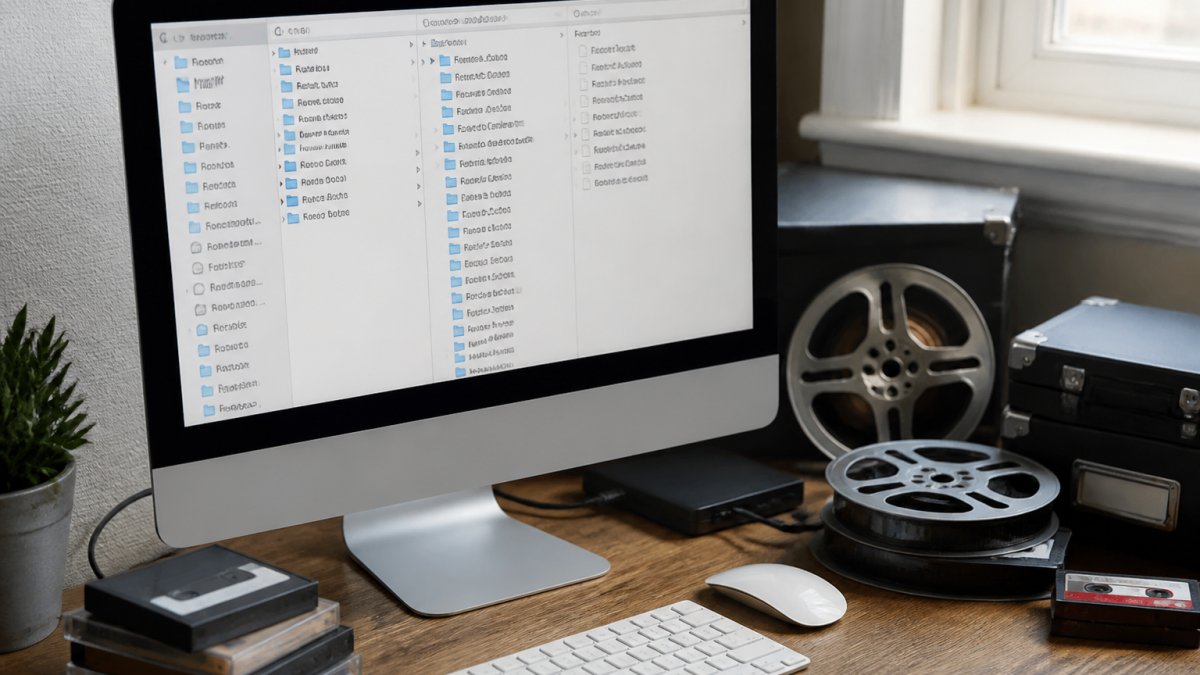
Create a main “Music” folder at the root of your storage device, with subfolders for each artist.
Inside each artist folder, create subfolders for each album, using the album title exactly as it appears on the official release.
Your structure should look like this:
- Music/
- Artist Name/
- Album Title (Year)/
- 01 – Track Name.mp3
- 02 – Track Name.mp3
- Another Album Title/
- 01 – Track Name.mp3
- Album Title (Year)/
- Another Artist/
- Album Title/
- Artist Name/
Handling the edge cases that break simple hierarchies
Compilation albums. Create a “Compilations” folder at the same level as your artist folders, organised by compilation title.
Multi-disc sets. Add a disc subfolder inside the album folder, for example “Album Title (Year)/Disc 1/” and “Disc 2/.” Keep track numbering continuous across discs in the metadata (Disc 1 tracks 01-12, Disc 2 tracks 13-24) or use a Disc Number tag if your player supports it. Continuous numbering is safer because it sorts correctly in almost every player and file browser.
Classical music. Classical catalogues rarely fit the artist-album model.
Featured artists. Keep the track in the primary artist’s album folder even when a featured artist appears.
Multiple editions. When you own the original, a remaster, and a deluxe edition of the same album, the year in the folder name separates them.
Before you commit to a structure, test it against your five most awkward albums. If the hierarchy can hold a compilation, a multi-disc set, and a classical recording without special-casing, it will hold everything else.
Why this structure travels well across devices
This hierarchy works across desktop players, phones, DJ software, and self-hosted servers because it relies on folders and filenames, not one application’s database.
For cross-device use, keep paths to three or four levels below the Music root, since some portable players and car stereos truncate long paths. If a path gets long, flatten the disc level rather than the composer or artist level.
Step 3: Apply Consistent File-Naming Conventions
A clear naming system lets you find tracks even without metadata and prevents confusion when files get separated from their folders.
Use this standard format for every music file:
[Track Number] – [Artist Name] – [Track Title].mp3
Examples:
- 01 – The Beatles – A Hard Day’s Night.mp3
- 12 – Pink Floyd – Shine On You Crazy Diamond.mp3
- 03 – Adele – Hello.mp3
Always use two-digit track numbers with a leading zero (01, 02, 03, not 1, 2, 3).
Use the same artist name spelling across all files and one capitalisation style throughout, either “Title Case For Every Word” or “lowercase except proper nouns.”
Keep filenames under 100 characters, since long names cause display issues on some devices and older media players.
Step 4: Use a Music Metadata Editor to Standardise Tags
Metadata tags are the hidden information embedded in your files, artist, album, genre, year, and track number.
A metadata editor lets you view and fix this information in bulk. Popular options include:
- MusicBrainz Picard (free, cross-platform)
- MediaMonkey (free version available)
- Kid3 (free, open-source)
Review suggested changes before applying them, the software sometimes matches a track to the wrong album or artist version.
Standardise these core tags across all files:
- Artist name
- Album title
- Track number
Leave optional tags like “comments” or “composer” blank unless you use them; consistent, clean tags matter more than complete ones.
Understanding FLAC vs MP3 formats for vinyl archiving helps when deciding which audio formats to standardise on.
Step 5: Choose Music Library Organisation Software for Management
Consider these factors when choosing software:
Device compatibility: Does it work on your phone, computer, and media players? Some software only works on one platform.
Search and browsing: Can you search by artist, album, genre, or year?
Tagging support: Can you edit metadata within the software? Does it handle batch edits?
Backup features: Does it back up your library information? Can you export your playlists?
Cost: Free options exist, but paid software often offers more features.
Popular music library organisation software includes:
- iTunes/Apple Music (if you use Apple devices)
- Plex (works across devices, includes streaming)
- Subsonic (personal music server)
Consider these key factors when selecting software to manage your music library.
| Factor | What to evaluate | Why it matters |
|---|---|---|
| Device compatibility | Works on phone, computer, media players | Ensures access across all your devices |
| Search and browsing | Search by artist, album, genre, year | Helps you find music quickly |
| Tagging support | Edit metadata and batch edits | Keeps your library information accurate |
| Backup features | Backs up library info, exports playlists | Protects your organisation work |
| Cost | Free options or paid software | Balances features with your budget |
Step 6: Set Up Digital Music Library Backup and Long-Term Preservation
Your organised library is only as safe as your backups. A single drive failure wipes out months of work, and a botched batch-tagging session can corrupt metadata across thousands of files in seconds.
Use the 3-2-1 backup rule as the baseline:
- 3 copies of your data (original + 2 backups)
- 2 different storage types (for example, internal drive + external drive + cloud)
- 1 copy stored off-site (cloud storage or a trusted location away from your home)
Set up your backups like this:
Primary storage: Your main music folder on your computer or NAS drive.
Local backup: An external hard drive kept at home, backed up weekly or monthly depending on how often you add music.
Off-site backup: Cloud storage or a drive kept at another location, protecting against theft, fire, or total device failure.
Back up more than the audio files
The audio is only part of what you would lose. Back up these alongside the music folder:
- Playlists. Export playlists from your player as M3U or similar files and store them with the library. Playlists that exist only inside an application database disappear when the application is reinstalled.
- The library database. If your player uses a database file (many do), include it in the backup set. Without it, a restore means re-importing and re-scanning everything.
- Your tagging notes. If you keep a written record of your naming and tagging conventions, back that up too. It is the instruction manual for rebuilding the library.
Automate, then verify
Automate backups on a schedule, because manual ones get forgotten. Built-in OS backup tools or the scheduling software bundled with most external drives are sufficient for a local copy.
Verification is the step almost everyone skips: a backup you’ve never restored is a hope, not a protection. Once a year, restore five albums from each backup location to a scratch folder and confirm the files open, tags are intact, and artwork displays, finding a failure while the original still exists.
Test your restore before you need it. The most common backup failure is not a dead drive; it is a backup that ran for years but was never checked, and turned out to be incomplete or unreadable when it mattered.
Plan for recovery, not just backup
A recovery plan answers three questions in advance: where the copies live, how often they run, and how to restore. Write the answers down somewhere other than the backed-up machine, and include the software needed to read the backup format, a backup you can’t open isn’t a backup.
For long-term preservation, favour open, widely supported formats. Lossless formats such as FLAC are more future-proof for archival purposes than proprietary formats that may become obsolete, and MP3 files last indefinitely if stored properly.
Revisit the plan yearly: are your drives still working, has your collection outgrown your storage, do you need another backup location? A backup strategy is only as good as its last test, so schedule the test and review together.
Step 7: Maintain and Expand Your Organised Library
Keeping an organised library requires simple habits, since new music, old discoveries, and format changes keep arriving.
When you add new music to your collection:
- Download or import the files
- Rename them using your standard format
- Place them in the correct artist and album folders
- Edit metadata tags immediately
- Run a backup within a week
Do this for every new addition, no matter how small.
Review your collection quarterly. Look for:
- Duplicate files that snuck in
- Tracks in the wrong folders
- Metadata that needs correction
Fix these issues as you find them. Small corrections take seconds. Ignoring them creates a backlog.
Expand thoughtfully: if you start collecting a new format, decide how it fits your structure. Consistency matters more than perfection.
For families with extensive media collections, digitised vinyl, home videos, or photo archives, a comprehensive approach to digital organisation becomes essential. A broader guide on organising old family media covers similar principles across all media types, helping you build a unified system for your digital heritage.
Frequently Asked Questions
How do I organize my digital music library if I have thousands of tracks from different sources?
Start by choosing a single folder hierarchy: Artist > Album > Tracks. Use consistent file naming (e.g., 01 – Track Name.mp3) and a metadata editor to standardise artist, album, and genre tags across all files. This approach works whether you have 100 or 10,000 tracks. Many people find it helpful to tackle their collection in batches, by decade, genre, or source, rather than all at once. Once your system is in place, apply it to new additions immediately to prevent future clutter.
What’s the best music library organisation software for managing my collection?
Popular options include Plex, Musicbrainz Picard, and MediaMonkey, each suited to different needs. Plex excels at streaming across devices; Picard specialises in automatic metadata correction; MediaMonkey offers detailed tagging and playlist management. Choose based on whether you prioritise cross-device access, metadata accuracy, or advanced organisation features. Most are free or low-cost, so test a few to see which workflow fits your habits best.
How often should I back up my digital music library, and what’s the safest method?
Back up at least twice yearly, or after major additions or changes. Use a combination of external hard drives (kept offline) and cloud storage for redundancy. Store one external backup off-site if possible, this protects against theft, fire, or hardware failure. Cloud services like Backblaze or Google Drive add an extra layer of protection. For irreplaceable recordings, especially digitised vinyl or cassettes, consider backing up to multiple locations.
Can I add my old vinyl records and cassettes to my digital music library?
Yes, but you’ll need to digitise them first. Professional digitisation services like Showbiz Video Productions can convert vinyl and cassette recordings into high-quality digital files with proper metadata embedded. Once you receive the digital files, treat them like any other track: place them in your folder structure, tag them consistently, and include them in your backup strategy. This is especially important for rare or sentimental recordings that can’t be replaced.
