
Table of Contents
- Why Storing Old Family Videos Matters
- Understanding Your Current Media Formats
- DIY VHS to Digital Conversion Guide
- Cloud Storage vs. Local Backup: Choosing Your Strategy
- Best External Hard Drives for Video Storage
- How to Organise Digital Family Archives
- Protecting Against Long-Term Format Obsolescence
- Environmental Storage Conditions for Physical Media
- Frequently Asked Questions
Last Updated: October 2, 2026
Why Storing Old Family Videos Matters
Your family videos are irreplaceable. Once they’re gone, they’re gone forever. VHS tapes degrade. Film reels become brittle. Digital files get lost. The longer you wait to preserve these memories, the higher the risk of losing them completely.
This guide covers everything you need to know about how to store old family videos, whether you choose to digitise them yourself or work with professionals.
The stakes are real. A single water leak, a house fire, or simple age can destroy decades of irreplaceable footage.
Understanding Your Current Media Formats
Before you can protect your videos, you need to know what you have. Different formats degrade at different rates. Some can last another decade. Others may already be failing.
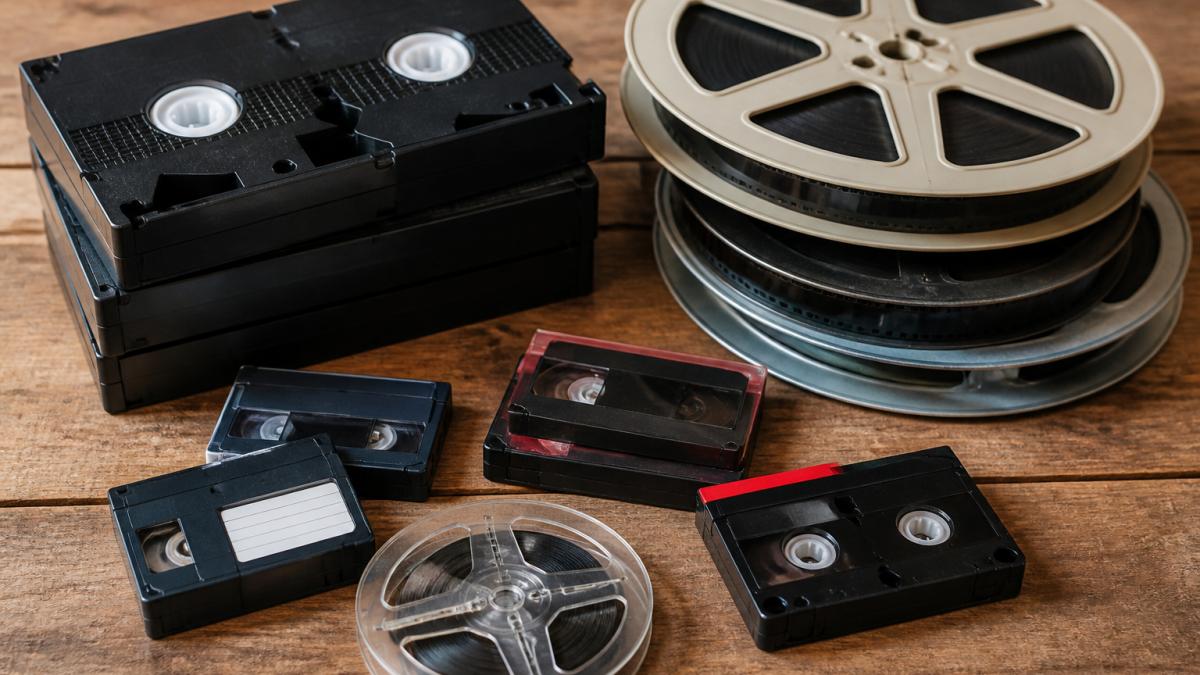
Assessing VHS Tapes and Film Reels
VHS tapes were standard for home video from the 1980s through early 2000s. Film reels, 8mm, Super 8, and 16mm, go back even further.
Check your collection carefully. Look at the physical condition of each tape or reel. Are the cases cracked? Does the tape itself look warped or discoloured?
Film reels are particularly fragile. The film base can become brittle and crack. If you handle old film roughly, you risk permanent damage. The same applies to VHS, the magnetic coating inside degrades over time, and the tape itself can stretch or snap inside the cassette.
Identifying Signs of Degradation
Watch for these specific problems:
- Discolouration or mould: Brown spots, white powder, or visible mould means the tape is already breaking down
- Warped or bent cases: Indicates exposure to heat or moisture
- Sticky tape: When you touch the tape, it feels sticky or gummy, this is the coating breaking down
- Visible damage to the reel: Cracks, bends, or separation from the hub
- Flaking or peeling: The magnetic coating is literally coming off the tape
If you see any of these signs, digitisation becomes urgent. The longer you wait, the worse the damage gets. Some tapes may already be unplayable.
DIY VHS to Digital Conversion Guide
You have two paths: do it yourself or hire professionals. DIY conversion works for small collections and tight budgets. But it requires equipment, patience, and technical knowledge.
Equipment and Software Options
A basic DIY setup includes:
- VCR or VHS player: Must be in working condition. Test it first with a tape you don’t care about
- Video capture device: USB capture cards cost £20-£50 and connect your VCR to your computer
- Computer with adequate storage: At least 500 GB free space for a small collection
- Capture software: Many capture devices include free software. OBS Studio is a free alternative
- External hard drive: For backup storage after conversion
For film reels, you’ll need a film scanner or projector with a camera. This gets expensive quickly. Most people find professional digitisation makes more sense for film.
Step-by-Step Conversion Process
Step 1: Prepare your equipment (15 minutes)
Step 2: Test with a practice tape (10 minutes)
Don’t start with your most precious tape.
Step 3: Set your capture settings
Most capture software defaults to reasonable settings. For family videos, 720p resolution is adequate.
Step 4: Capture the full tape (real time)
Hit record in your software and play the entire tape.
Step 5: Save and verify (15 minutes)
Once captured, save the file in MP4 format.
Step 6: Repeat for remaining tapes
This process scales linearly.
When to Consider Professional Digitisation
DIY makes sense if you have fewer than ten tapes and you’re comfortable with basic tech. Beyond that, the maths change.
The real advantage of professional work is speed. Same-day turnaround means your tapes are back in your hands within hours, not weeks.
Cloud Storage vs. Local Backup: Choosing Your Strategy
Once your videos are digital, you face a critical decision: store them in the cloud, on local hard drives, or both?
Neither option is perfect alone. Cloud storage offers accessibility and automatic backup. Local storage offers control and independence from internet providers. The safest approach combines both.
Advantages and Limitations of Each Approach
Cloud storage (Google Drive, Dropbox, iCloud):
Advantages:
- Accessible from any device, anywhere
- Automatic syncing across devices
- Survives house fires and theft
- No hardware to maintain
Limitations:
- Ongoing subscription costs
- Dependent on internet connection
- Privacy concerns with third-party servers
- Data centres could go out of business
Local external hard drives:
Advantages:
- One-time cost, no ongoing fees
- Full control over your data
- No internet dependency
- Fast access to large files
Limitations:
- Hard drives fail without warning
- Vulnerable to fire, flood, theft
- Requires manual backup discipline
- Physical storage space needed
The 3-2-1 Backup Rule for Families
Professional archivists use the 3-2-1 rule: keep three copies of important data, on two different types of media, with one copy off-site.
For your family videos, this means:
- 3 copies: Original digital file + two backups
- 2 media types: One on external hard drive + one in cloud storage
- 1 off-site: The cloud copy automatically satisfies this
Example setup:
- Copy 1: External hard drive at home (local backup)
- Copy 2: Second external hard drive stored at a friend’s or family member’s house (off-site backup)
- Copy 3: Cloud storage synced automatically (off-site + accessible anywhere)
This approach can be inexpensive insurance for irreplaceable memories.
Best External Hard Drives for Video Storage
If you’re storing high-resolution video files, your hard drive choice matters. Not all drives handle large video files equally well.
Storage Capacity and Speed Requirements
Video files are large. A single 2-hour VHS tape converts to roughly 4-8 GB depending on resolution.
Buy a drive with at least twice the capacity you currently need. You’ll add more videos over time.
Speed also matters. Drives marketed for video storage (like Western Digital Red or Seagate SkyHawk) are optimised for continuous writing.
Reliability and Longevity Considerations
Hard drives fail. It’s not a question of if, but when.
Buy from established manufacturers: Western Digital, Seagate, or Samsung. Avoid generic no-name brands.
Store your backup drive in a cool, dry place. Keep it away from direct sunlight, heat sources, and moisture.
How to Organise Digital Family Archives
Once your videos are digitised, organisation becomes critical. A folder called “Videos” with fifty random files is useless. You won’t find anything. Your family won’t be able to navigate it after you’re gone.
File Naming Conventions and Folder Structure
Use consistent, descriptive file names. Avoid generic names like “Video1” or “Tape5.”
Good naming structure:
YYYY-MM-DD_Event_Location_Description.mp4
Examples:
1995-07-15_Birthday_Sarah_Backyard.mp42001-12-25_Christmas_Morning_Lounge.mp41987-08-30_Holiday_Gold_Coast_Beach.mp4
The date comes first so files sort chronologically automatically. Include the event and location so you can find specific memories quickly.
Create a folder structure that mirrors your naming:
Family Videos/
├── 1980s/
│ ├── 1987-Holidays/
│ └── 1988-Birthdays/
├── 1990s/
│ ├── 1995-Sarah-Birthday/
│ └── 1998-Christmas/
└── 2000s/
└── 2001-Holidays/
This structure lets anyone in your family navigate your archive without asking for help.
Adding Metadata and Tags for Easy Retrieval
Metadata is information about your video: who’s in it, when it was filmed, where, what event it captures. Most video players and cloud storage services let you add tags and descriptions.
Add these details:
- People: Names of family members featured
- Location: Where the video was filmed
- Date: When it was filmed (even approximate)
- Event: Birthday, holiday, graduation, etc.
- Notes: Any context that helps future viewers understand what they’re watching
This takes extra time upfront, but it transforms your archive from a collection of files into a searchable family history.
Maintaining Your Archive Over Time
Your archive isn’t static. New videos will be added. Files may need to be moved or reorganised. Set a schedule for maintenance.
Every six months:
- Check that backup drives are still functioning
- Verify cloud storage is syncing correctly
- Add any new videos to your folder structure
- Update metadata for recent additions
This discipline prevents chaos. It also catches problems early, a failed drive is discovered during maintenance, not when you need the video.
Protecting Against Long-Term Format Obsolescence
Here’s the uncomfortable truth: the digital formats you’re using today may not be readable in thirty years. MP4 is standard now, but standards change. Your grandchildren might not have devices that play MP4 files.
Choosing Durable File Formats
Some formats are more stable than others:
- MP4: Widely supported, unlikely to become completely obsolete soon
- MOV: Apple’s format, also widely supported but less universal
- AVI: Older format, less ideal for new conversions
- Proprietary formats: Avoid these entirely. They’re the most vulnerable to obsolescence
When you digitise your videos, use MP4. It’s the safest bet for long-term accessibility.
Planning for Future Technology Changes
You can’t predict the future, but you can prepare for it:
- Keep original files: Never delete the original digital files, even after you’ve made copies in different formats
- Document your archive: Create a simple text file listing what you have, the formats used, and when it was created. Store this with your videos
- Refresh your backups periodically: Every five years, copy your archive to new hard drives. Technology changes, and older drives fail more often
- Stay informed: Check periodically whether your chosen formats are still widely supported
This isn’t paranoia. It’s the same approach professional archivists use to preserve historical records.
Environmental Storage Conditions for Physical Media
Even after digitisation, you may want to keep the original tapes and film reels. They’re irreplaceable, and digital files can fail too.
Temperature and Humidity Control
VHS tapes and film are sensitive to environmental extremes:
- Temperature: Store between 16-20°C. Avoid heat sources like radiators, sunlight, or attics. Avoid cold storage like unheated sheds or garages
- Humidity: Keep between 30-40% relative humidity. Too dry and the film becomes brittle. Too damp and mould grows
- Stability: Temperature and humidity should be stable. Constant fluctuation is worse than being consistently warm or cool
A climate-controlled storage unit is ideal, but expensive. A spare bedroom in your house works fine if it’s not near heat sources or windows.
Protecting Against Light and Physical Damage
Store tapes in their original cases or archival boxes. Keep them upright, not stacked flat. Stacking causes warping and pressure damage.
Keep them away from:
- Direct sunlight (causes fading and heat)
- Fluorescent lights (can degrade film)
- Magnetic fields (near speakers or electrical equipment)
- Dust and dirt (use sealed boxes)
Label everything clearly. Future family members won’t know what they’re looking at unless you tell them.
Preserving your family videos is one of the most meaningful things you can do. These memories are irreplaceable, once they’re lost, they’re gone forever. Whether you digitise them yourself or trust professionals like Showbiz Video Productions with the work, the important thing is to act now.
We’ve been helping families preserve their memories for over twenty years.
Frequently Asked Questions
What is the best way to store old family videos for long-term preservation?
The best approach combines digitisation with the 3-2-1 backup rule: one copy on your primary drive, a second copy on an external hard drive, and a third copy in cloud storage or off-site. Digitise VHS tapes and film reels to prevent magnetic tape degradation. Store original physical media in a cool, dry environment away from light. Use durable file formats like MP4 with H.264 codec, and maintain metadata with proper file naming conventions so your archive remains accessible for decades.
Should I use cloud storage or physical hard drives for storing family videos?
Both are essential for comprehensive protection. Cloud storage provides off-site redundancy and accessibility from any device, but it depends on internet connectivity and ongoing subscription costs. External hard drives offer faster access and offline security but can fail without warning. The ideal strategy uses both: keep your primary working copy on a reliable external hard drive, maintain a backup on a second drive, and synchronise important files to cloud storage for geographic redundancy and family access.
Can I digitise old VHS tapes myself, or should I use a professional service?
DIY digitisation is possible with a VHS player, capture card, and video editing software, but it requires technical knowledge, time investment, and quality control. Professional services handle delicate media with specialised equipment, offering high-quality digital files and batch processing of large collections. If your tapes show signs of degradation, mould, or physical damage, professional digitisation is strongly recommended to prevent data loss. For small collections in good condition, DIY conversion can work; for irreplaceable family memories, professional handling offers peace of mind.
How often should I back up my digital video collection?
Establish a backup schedule based on how frequently you add new videos. If you’re actively digitising or recording, back up monthly to your secondary external drive and quarterly to cloud storage. After your initial digitisation project is complete, perform annual checks to verify all files remain accessible and uncorrupted. Test your backup drives periodically to confirm they still function. Monitor your cloud storage for synchronisation errors. Regular backups protect against accidental deletion, hardware failure, and data corruption.